Pilot
Information
Thanks to the avatar, you can visualize your interaction devices in the scene, as well as your collaborators' devices.
Local information
In a collaborative session, your collaborators identify you by your name and color. Customize them in the Local information area:
Name: enter the name under which you appear in the collaborative session. By default, Accel VR uses your computer name.
Color: click the color square to choose the color that represents you in the scene. You can also change it directly from the Collaborative tab of the Accel VR side panel.
Choose your immersive device from the list below.
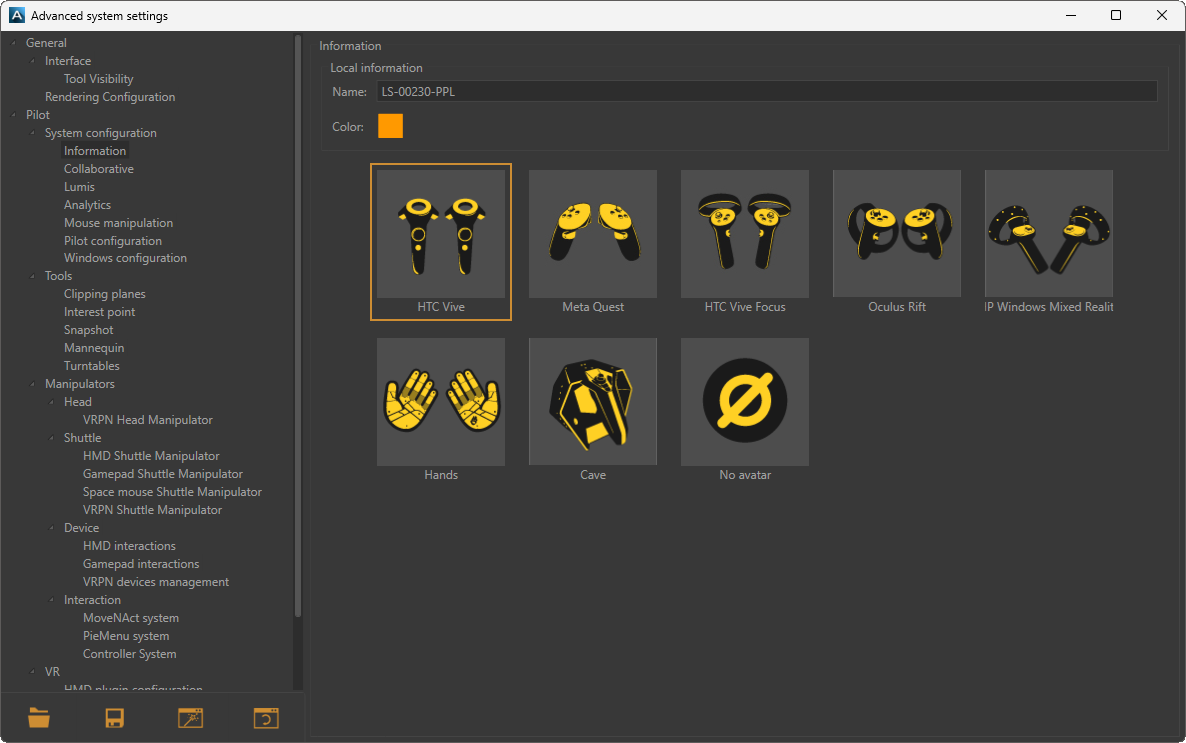
Select your immersive device avatar
Warning
The Touch Interaction Manipulator is only available with the plugin of Touch Interaction.
Collaborative
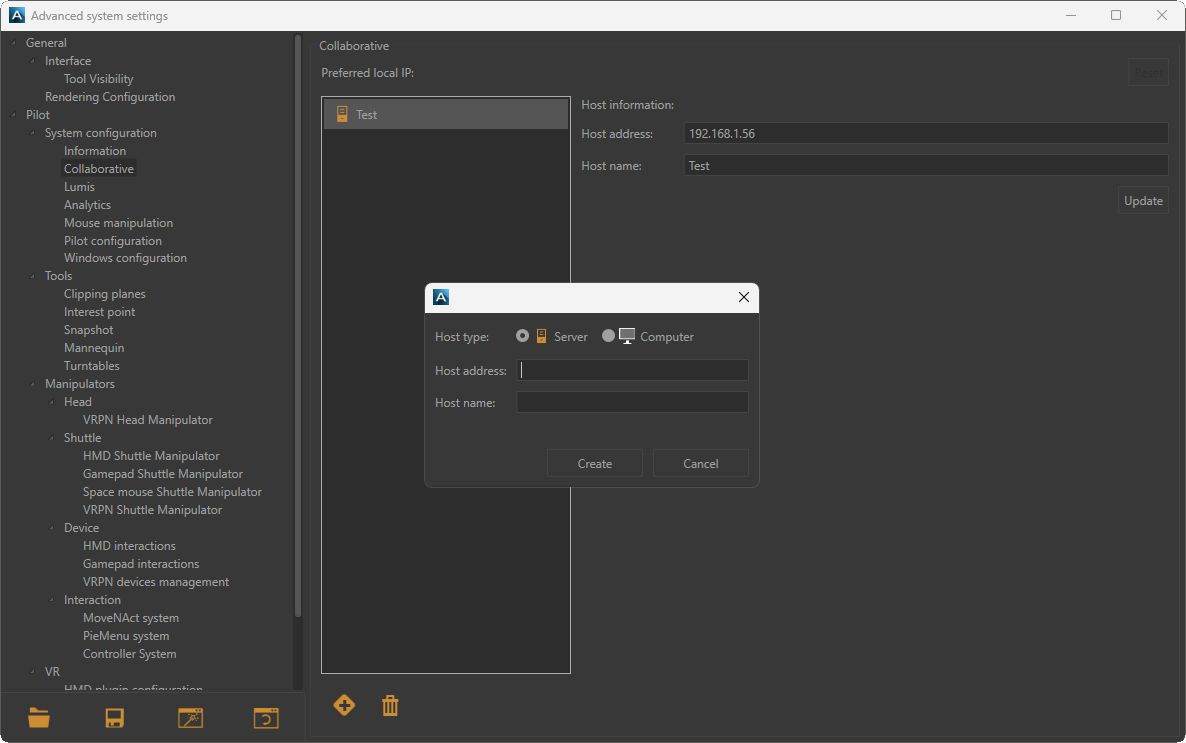
Find here the network settings related to a collaborative session, such as the Preferred local IP address of Accel VR and host management (adding, editing, and deleting) to join a collaborative session.
Preferred local IP
When your computer has several network interfaces, Accel VR asks you at startup which IP address to use. If you selected Remember this choice, this address is displayed here. Click Reset to forget it: the IP address selection window will be displayed again the next time Accel VR starts. The Reset button is only active if an address has been memorized.
Host list
The list contains the hosts registered in Accel VR, notably those you add from the Collaborative Session Wizard in the Collaborative tab of the Accel VR side panel when you create or join a session. It is empty until a host has been added. An icon indicates the type of each host: Server or Computer.
Add a host
Hosts are usually added from the Collaborative Session Wizard, but this can also be done on this page.
Click the button
 below the list.
In Host type, select Server or Computer.
Fill in the Host address and the Host name.
Tip
By default, Accel VR uses the address entered as the host name. You can rename it afterwards.
Click the Create button.
Edit a host
Select a host in the list, edit the Host address and the Host name in the Host information area, then click the Update button. This area and the button are inactive until a host is selected.
Delete a host
Select the host, then click the trash button  below the list.
Select manipulators
At the first installation of Accel VR the following drop-down menus Head, Device, Interaction, and Shuttle are automatically filled out with the detection of your device.
You can also change the manipulator after the first installation of Accel VR through the VR tab of Accel VR.
Mouse manipulation
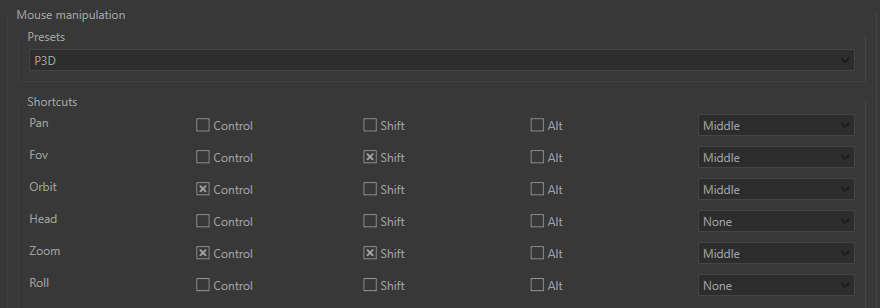
The Mouse manipulation settings
You can apply the keyboard shortcuts of your favorite CAD software in Accel VR. These are shortcut profiles named Presets.
The Presets drop-down menu lists the keyboard shortcuts of the following software:
3ds Max
Alias
Maya
P3D (Patchwork 3D)
SolidWorks
Custom
If you modify an existing keyboard shortcut profile, it will automatically switch to Custom.
Pilot configuration tab
Depending on your needs you can select or unselect the parameters below to improve the rendering performance in the viewport of Accel VR Pilot:
Grid
Referential
Mirrors
Displays the reflections of other geometries in the scene in planar mirrors. This option can greatly increase the number of elements to be rendered in a scene. You can disable it in order to increase rendering fluidity.
Post-processes
Background
Overlay[1]
Enhanced bump
Display scene gizmos
Modify the representation of the model to be displayed in the View: Material, Color, Lightmaps, Wireframe, and Depth.
If necessary, you can also cover the background with a solid color or a two-color gradient.
Windows configuration
Depending on your needs you can select or deselect the settings below to improve the rendering performance of render units:
Mirrors
Displays the reflections of other geometries in the scene in planar mirrors. This option can greatly increase the number of elements to be rendered in a scene. To save resources this option is disabled by default. You can disable it in order to increase rendering fluidity.
Post-processes
Background
Overlay
Enhanced bump
Material, Color, Lightmaps, Wireframe and Depth change the representation of the model to be displayed.
Overwrite background
If necessary, you can also overwrite your background with a solid color or with a gradient of two colors. Check the Overwrite background checkbox to make your choice.
Windows visible
Displays the rendering windows of the Units on the Unit workstation screen. This option is enabled by default.
Windows always on top
Places the Unit windows in the foreground, above the other Microsoft Windows open on the Unit workstation. This option is disabled by default
Enable software synchronization between windows
Use this option to synchronize two or more windows when your installation does not have hardware synchronization. This option is disabled by default.
Stereo enabled
Enables stereoscopic rendering of the display windows for viewing with 3D glasses. Each window then displays two distinct images (left eye and right eye). This option is disabled by default.
Accel VR can automatically display the available windows of the shuttle over the network.
Click on this icon  to choose each window you want to use. The icon of the selected window turns orange
 to inform the user that the window has been added to the list. The question mark
 then disappears. You can now close the window of the Advanced system settings.
Back in the accordion menu titled Windows, you will then see a brief description of the window (its IP and name) that you just added.
Tip
This icon means that the shuttle window has not been added to the list yet. It is unknown. This icon  means that the dedicated calculation unit to the window of the shuttle is not available over the network despite the fact that it has been added to the list.
[1] An overlay is an image (often a logo) that is applied in two dimensions in front of objects in the 3D world. It does not move when you navigate in the 3D world; it remains stationary relative to the screen.
[2] An overlay is a 2D image (often a logo) that is displayed in front of the objects in the 3D world. It does not move when you navigate in the 3D world but remains stationary with regard to the screen.