Selection Mode


The Selection operating mode (F2) allows you to interact directly with the 3D surfaces to modify the selection.
| Action | Shortcut |
|---|---|
| Select a single surface | Click on the surface. |
| Add a surface to the selection | Shift + click on the surface. |
| Remove a surface from the selection | Ctrl + click on the surface. |
| Cancel a selection | Click anywhere in the background of a viewport. |
By holding the mouse button down and moving the mouse cursor, you plot a rectangular region. When you release the mouse button, all the surfaces that are visible in this region are included in the selection operation.
| Action | Shortcut |
|---|---|
| Select all surfaces in a region | Click and drag the mouse pointer in the viewport. |
| Add all surfaces in a region to the selection | Shift + click and drag the mouse pointer in the viewport. |
| Remove all surfaces in a region from the selection | Ctrl + click and drag the mouse pointer in the viewport. |
| Cancel a selection | Click anywhere in the background of a viewport. |
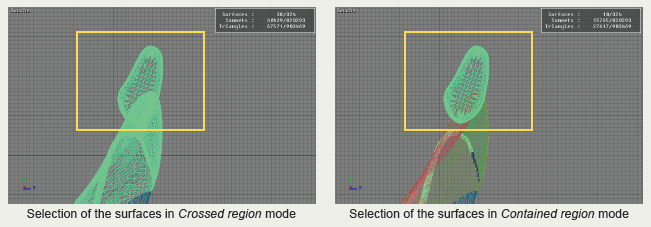
There are two methods of determining which surfaces are included when using regions to select groups of surfaces:
| Icon | Function | Description |
|---|---|---|
|
|
Edit menu > Touched by Region (F3) |
By default, the selection system is configured to designate all the surfaces contained or partially contained in the designated region during the click and drag. |
|
|
Edit menu > Enclosed by Region (F4) | Only the surfaces that are fully contained in the region are designated during the click and drag. This operating mode is particularly advantageous when you wish to designate the surfaces of a more complex assembly. |
Clicking any area of the background in a 3D viewport will cancel the selection.


