Creating Complex Rules
Complex rules are rules that define relationships between defined symbols using the logical operators "and", "or", "not", and "xor". When the conditions of the complex rule are true, the target layers are displayed.
Complex rules are created manually by typing the desired expressions. To create a complex rule, use the new complex rule button in the Configurations editor.
- Open the Configurations editor. Go to the Editors menu > Create Configurations
 .
. - Click on the
 New Complex Rule button. The Complex Rules editor will appear.
 - In the first text box, the editor proposes a default name for your rule. Replace "Rule" with a meaningful name.
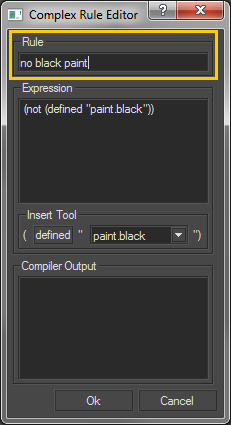
Figure 187 : Replacing "Rule" with a meaningful rule name.
- In the Expression text box, type out the Boolean expression. Refer to the chapter on Rule Syntax for more information on expression syntax.
- You can use the Insert Tool to insert simple rule expression within your complex rule:
- Select the desired existing symbol from the drop-down list.
- Click "defined" to insert the expression at the current cursor location in the Expression text box.
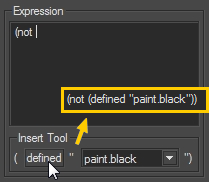
Figure 188 : Using the Insert Tool to insert the simple expression "(define "paint.black")" in a complex expression.
- Click OK to validate your rule. If the rule cannot be validated, the validation problems will be listed in the Compiler Output box. These problems must be corrected before you can validate your rule.
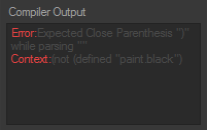
Figure 189 : Compiler output error for missing final parenthesis.
Your rule has been created, but you still need to assign target layers to it:
- Return to the Configurations editor. In the rules list, select the rule you have just created.
- Drag and drop your desired target layers onto the target list. You can drag layers from any of the following:
- Matter: Aspect Layers editor,
- Matter: Overlay Layers list in the Overlays editor,
- Matter: Environment Layers list in the Product Environments editor.


