Manipulating Surfaces
Translation and Rotation Gizmos
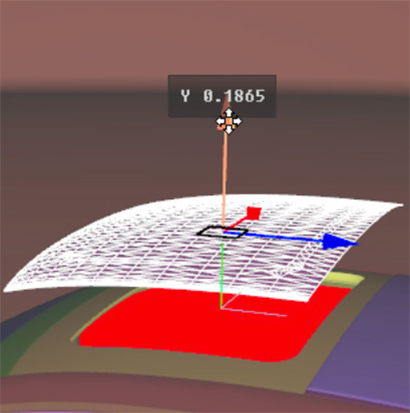
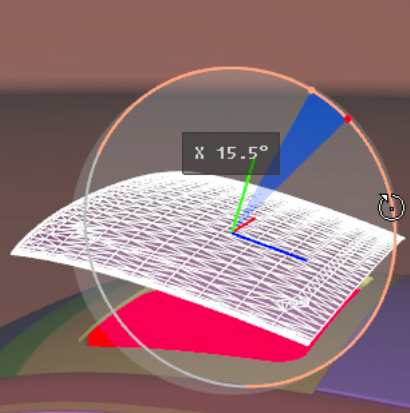
Patchwork 3D Design includes gizmos that make it easier to manipulate 3D objects in space. They appear automatically as an overlay on the selected element when the Translation  or Rotation
  gizmo is enabled.
To move an element along an axis, click the part of the gizmo that represents the movement axis and drag the mouse in the desired direction. To rotate an element, the movement axis is either up-down or left-right. The farther you drag the mouse along this axis, the greater the angle of rotation will be.
A numerical indicator placed close to the gizmo shows the value applied to transformation in real time.
|
|
Translation
The translation gizmo allows a surface to be moved via a click and drag effected on the selection.
The reference point used for moving the selection is always the leader surface's pivot.
A surface is moved in relation to its transformation referential. The center of the referential is placed over the surface's pivot.
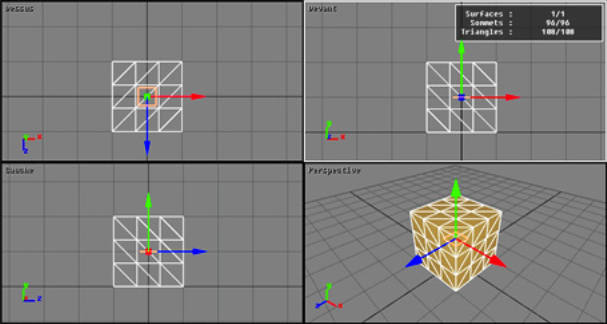
Figure 12 : Translation Gizmo.
Rotation
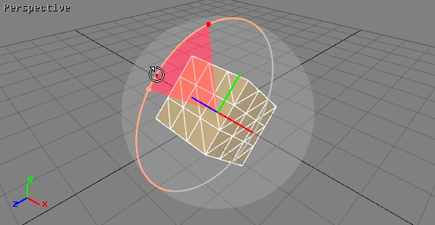
The rotation gizmo allows the orientation of surfaces to be modified by clicking and dragging the selection. This operational mode functions similarly to the translation gizmo: you can modify the selection with the same mouse and keyboard combinations.
The orientation of the surfaces is modified in relation to its transformation referential. When the mouse is moved along an axis (up-down or left-right), the selected surfaces rotate around one of the axes of their referential.
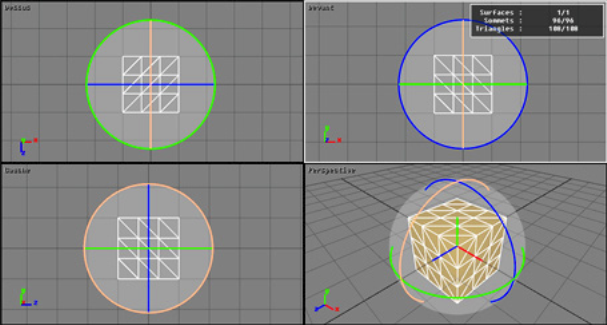
Figure 13 : Rotation Gizmo.
Transformation Tools


The drop-down menu in the top toolbar establishes the transformation referential and contains four options: Screen, View, World, and Local.
| Referential option | Description |
|---|---|
| Screen |
The transformation referential is aligned with that of the screen on the XY plane. Moving a surface in XY occurs on a plane parallel to the screen and passing through the surface's pivot. |
| View |
For orthographic views (top, bottom, left, right, front, and back), the behavior is the same as for the Screen orientation. For isometric and perspective views, the behavior is the same as the World orientation. |
| World |
The transformation referential is aligned with the axes of the model. |
| Local |
The transformation referential is aligned with the local referential of the surface. In this mode, the transformation referential is identical to the pivot. |
Moving a surface occurs in three dimensions along the transformation referential, although the cursor is moved on the plane of the screen in two dimensions. The movement of the mouse is therefore not sufficient to determine the 3D movement of a surface. This is why moving a surface is limited to one or two selected dimensions via the transformation referential.
Surface Visibility and Frozen States
Shaper provides three operating modes that allow you to quickly modify the visibility and the frozen state of surfaces:
| Icon | Function | Description |
|---|---|---|

|
Click to Hide | Click on a surface to hide it. |

|
Click to Freeze | Click on a surface to freeze it. |

|
Click to Unfreeze | Click on a surface to unfreeze it. |


