Color Chooser (Editor)
Notice
Available in: Matter or Shaper: click on a modifiable color square |
The Color Chooser is a tool that allows you to define, create, save, load, and manage colors.
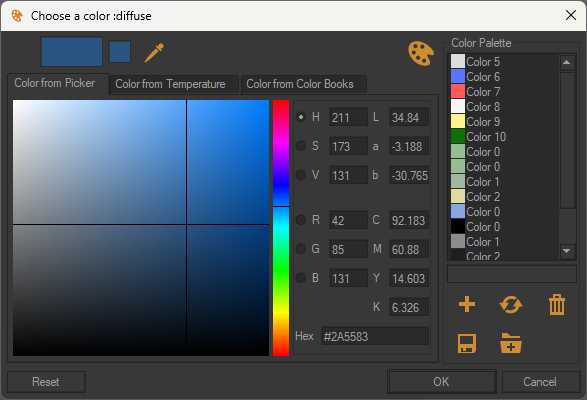
Example of a Color Chooser with the unfolded color palette.
The interface of the Color Chooser is divided into two parts:
Left part, the overview
At the top, the visualization rectangle (dynamic preview) displays the color currently selected and updated in real-time as the cursor moves through the color chart. It is the current color.
To the right, the sample square shows the original color (the color that opened the Color Chooser). The color remains fixed and serves as a before-and-after marker. It is the previous color.
The pipette
 to sample color anywhere on your screen, inside or outside Patchwork 3D. Click on it to activate it and then pick up the desired color. A hexadecimal code appears under the pointer to make it easier to pick the color
Right part, the Color Palette
Accessible via the button
 . The Color Palette groups the colors saved in your file for reuse.
Clicking on a color in the palette will load it in the color picker for use.
The buttons below the list of colors in the open palette allow you to manage the palette:
Button | Description |
|---|---|
| This button allows a new color to be added to the palette. The new color will appear in the Color Palette list. TipThe color appears in the color palette. Each newly-created color is named by default: Color 1. You can rename each color in the text zone situated below the color palette. |
| This button allows you to update the selected color in the color palette with the hue you have set in the color picker to the left. |
| This button deletes the selected color from the list of colors in your palette. |
| This button saves color palettes in the KPL format. |
| This button loads KPL files. TipKPL files can also be directly loaded by drag and drop from Windows Explorer in the Color Palette tab. |


Loading a KPL file in the Color Palette by drag-and-drop replaces the colors that are currently listed with those from the KPL file. To add the list of colors in a KPL file to the list of colors already present in the tab, hold down the Shift key during the drag-and-drop.
The buttons at the bottom allow you to save or ignore modifications:
Button | Description |
|---|---|
OK | To validate your color selection, which appears in the rectangle to the left, and to close the color chooser, click on OK. This updates the color of the element that you are currently modifying. |
Cancel | The Cancel button closes the color chooser without saving any changes. |
Reset | The Reset button allows you to return at any moment to the initial color of the element, shown in the rectangle on the right. |
Media
This short video demonstrates how to select multiple colors from the color chart in succession, and then sample another one using the pipette tool.