Using the User Interface
This section introduces the add-on’s interface in Blender and explains how to navigate its main features, such as selecting data, customizing version labels, and managing version history.
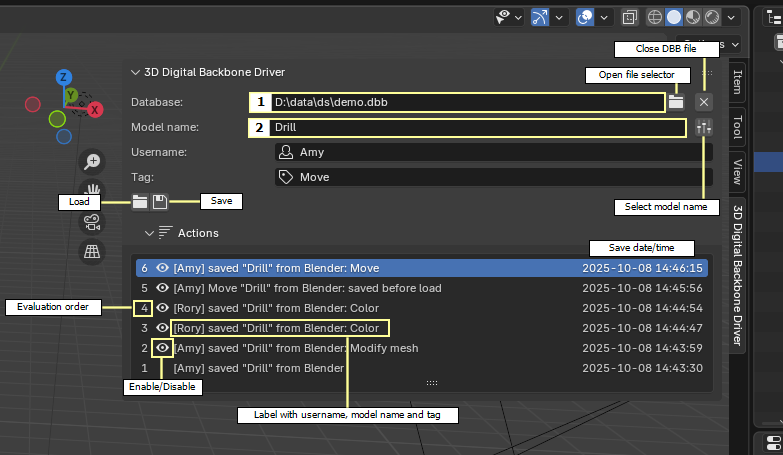
How to select the Blender data in the 3D DBB?
Click on the file selector in the first row
 to choose the 3D Digital Backbone database file to load: select an existing file in which the content will be saved. If the file does not exist, it will be created at the first save operation.
Choose a Blender database name:
If it is the first save, write a name in the Name field.
If it is a model already saved in the 3D DBB, click on
 to display the names of the models stored in the 3D DBB.
Customizing the version label

Each time the save button is pressed, the current state of the data in Blender will be saved in the 3D DBB along with a label composed of the username and tags. In the interface, by default, the username is set to the username of the computer. If the username field is left empty, in the version label, it will be mentioned “Anonymous user”.
The optional tag can be helpful to identify the version.
List of actions
This list allows the user to understand, for a loaded state, the order in which actions were evaluated to compute the current state. By toggling the eye icon  the user can enable or disable a state, and the result will be automatically updated in the 3D Digital Backbone and in the opened Blender session.
For example, the list of actions shown below.
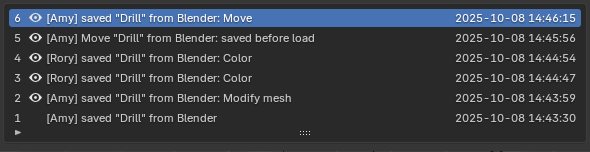
In order of evaluation, the actions evaluated are:
User [Amy] saved the data “Drill” from Blender.
User [Amy] saved Blender's modified “Drill” data with the tag [Modify mesh].
User [Rory] saved Blender “Drill” data with the tag [Color].
User [Rory] saved Blender “Drill” data with the tag [Color].
User [Amy] tried to load, so her work was saved first.
User [Amy] saved Blender's modified “Drill” data with the tag [Move].