Ray tracing a View
Available in: Matter : left side toolbar of the 3D Patchwork interface |
Tip
The default rendering engine selected in Patchwork 3D is the Path tracing.
From the Raytracing Settings  editor in the left-side toolbar of the Patchwork 3D interface, you can switch between the Ray tracing and Path tracing rendering engines at any time, even during rendering.
In this chapter, you will find Raytracing Settings (Editor) the information related to the settings of the two rendering engines.
Ray tracing a view
Notice
To perform ray-traced rendering of the view, use the button Enable GPU Ray Tracing rendering  from the side toolbar located on the left side of the Patchwork 3D interface, OR directly in the Raytracing Settings editor. Click again to stop the rendering.
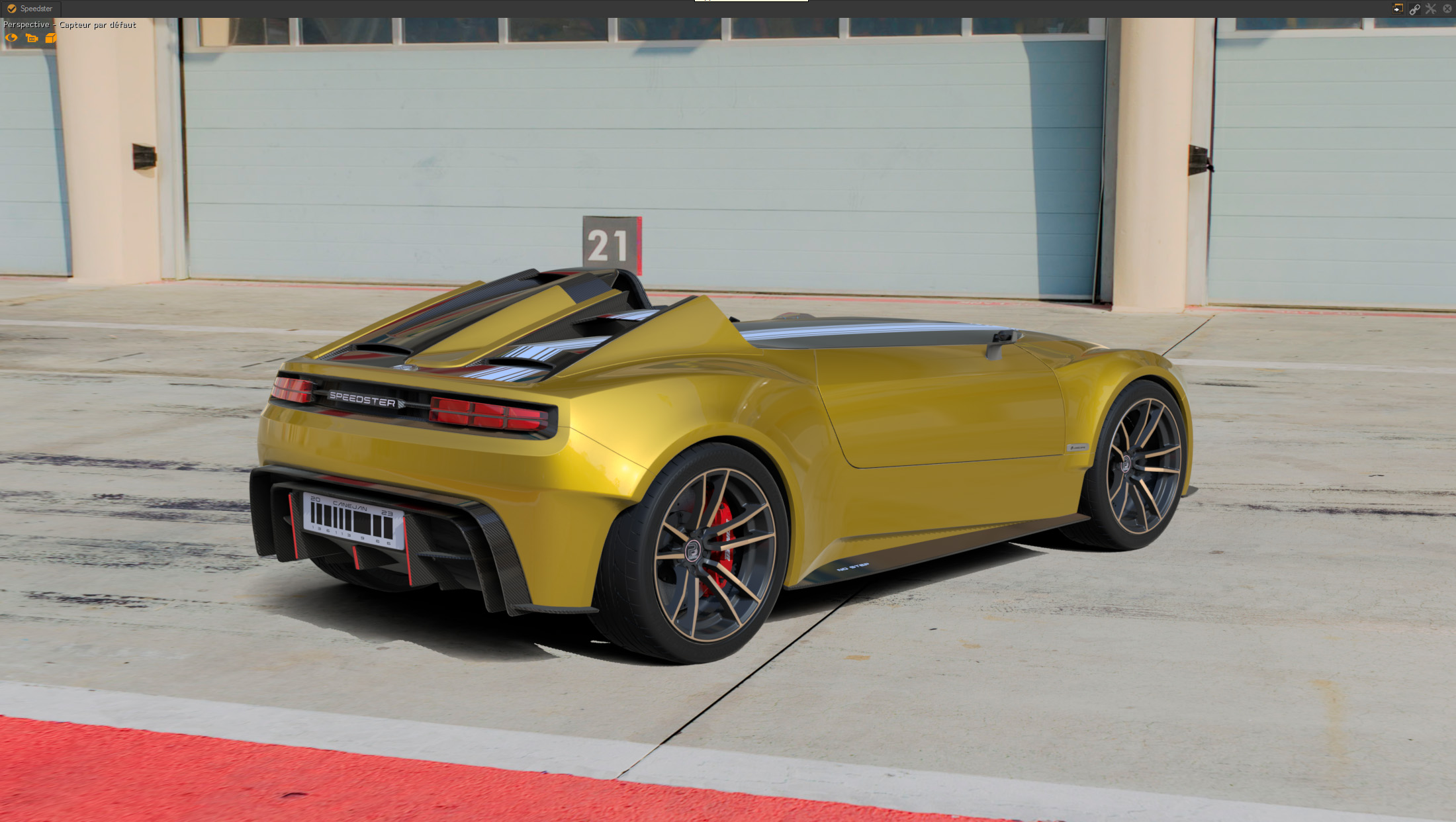
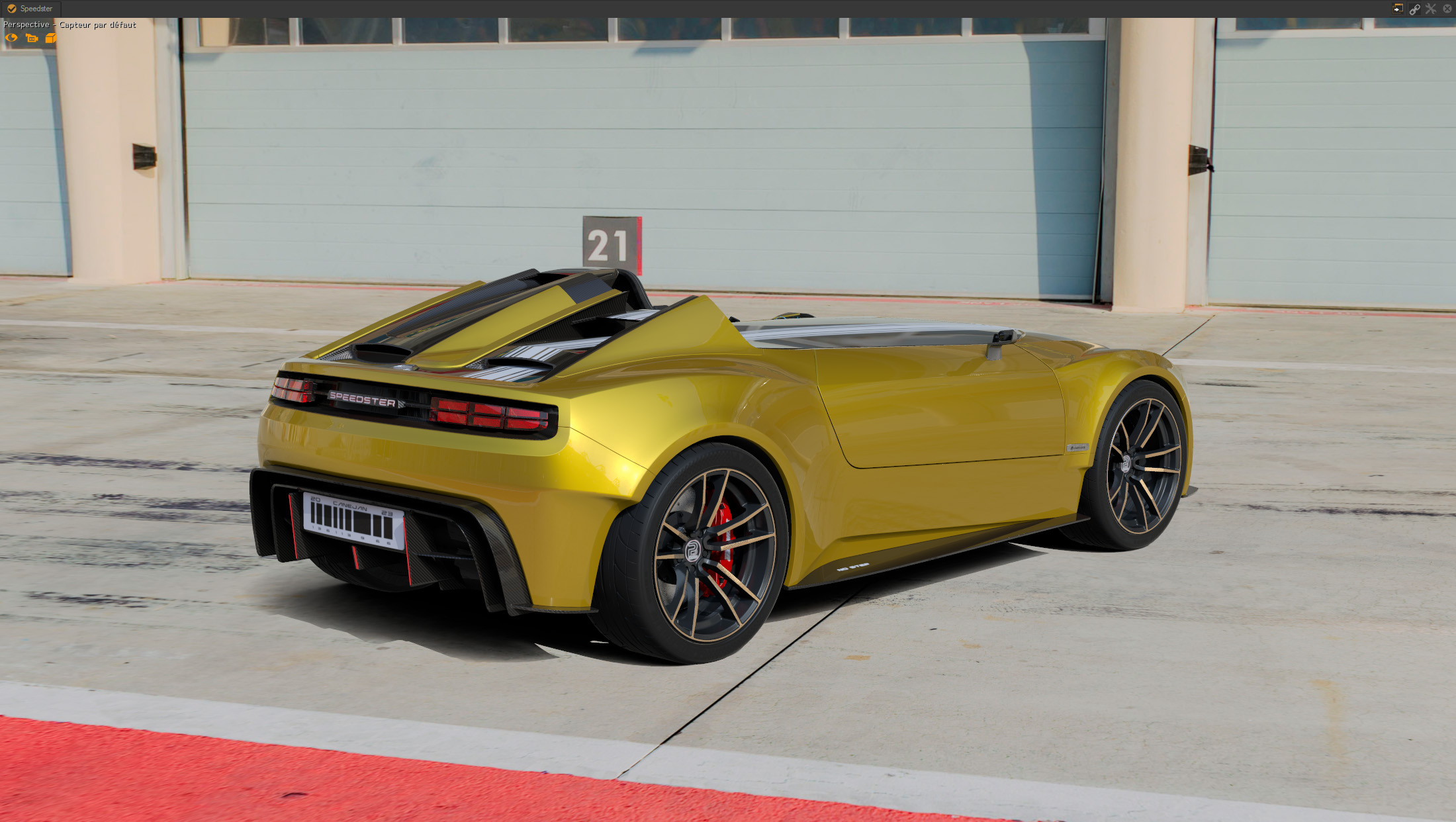
On the left view, a rendering without the Ray tracing engine. To the right, a rendering with the Ray tracing engine.
Path tracing a view
Notice
To perform ray-traced rendering of the view, use the button Enable GPU Ray Tracing rendering from the side toolbar located on the left side of the Patchwork 3D interface, OR directly in the Raytracing Settings editor. Click again to stop the rendering.
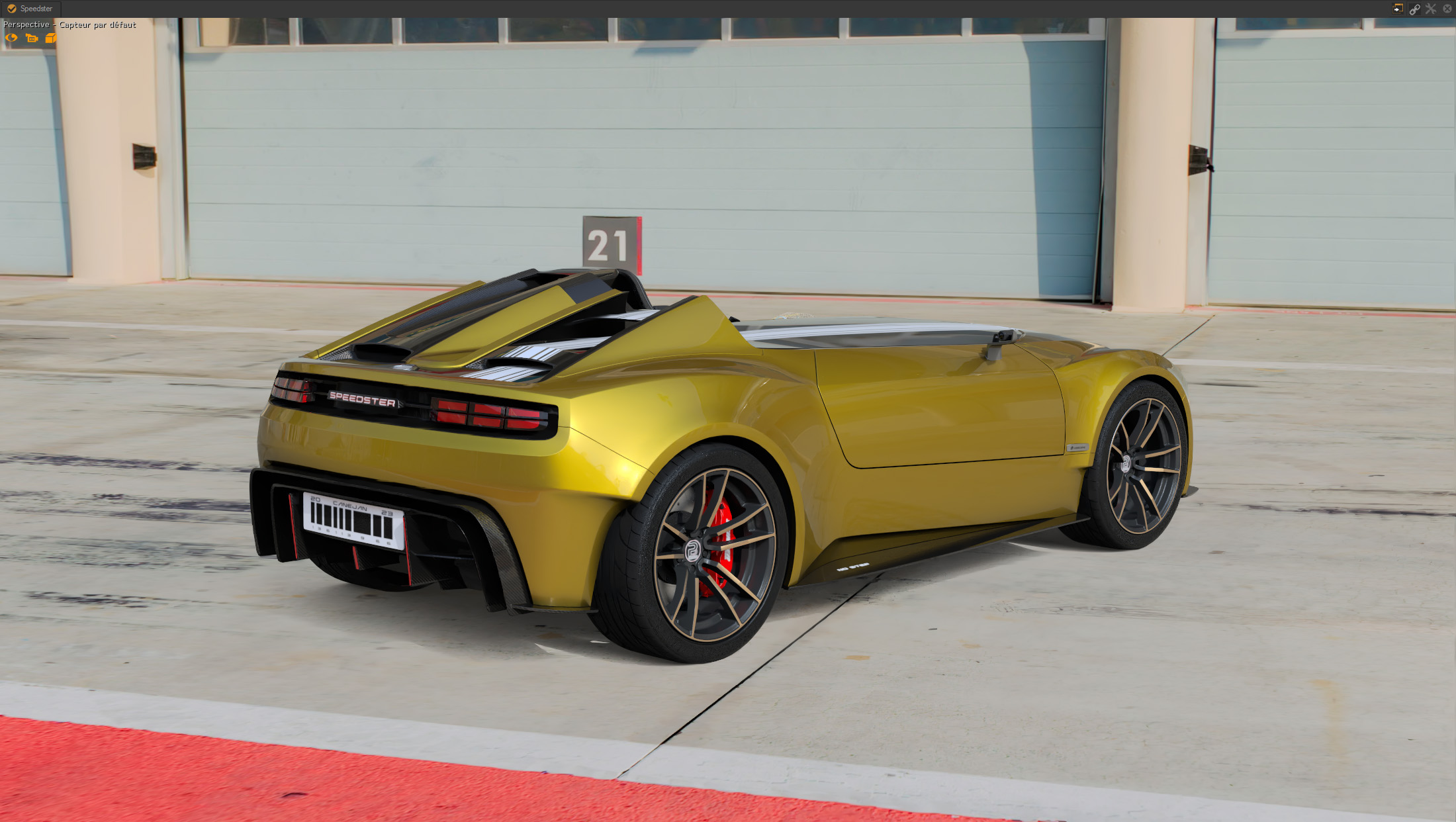
On the left view, a rendering without the Path tracing. On the right, a rendering with the Path tracing with Global illumination activated.
Tip
To maintain a natural look with the denoiser, leave enough samples/path traces before activating the denoiser to avoid smoothing too early.