Working with the 3D DBB
This section provides step-by-step procedures for initializing, saving, loading, synchronizing, and closing Blender data in the 3D Digital Backbone.
For databases containing a lot of meshes, the save and initial load operations can take some time.
How to initialize the Blender data representation in 3D DBB from a .blend file?
Context: The data is not in the 3D DBB, and you want to save it.
Load a .blend file
[Optional] Set a user name and tag keyword.
Click on the Save
 button.
.blend → | 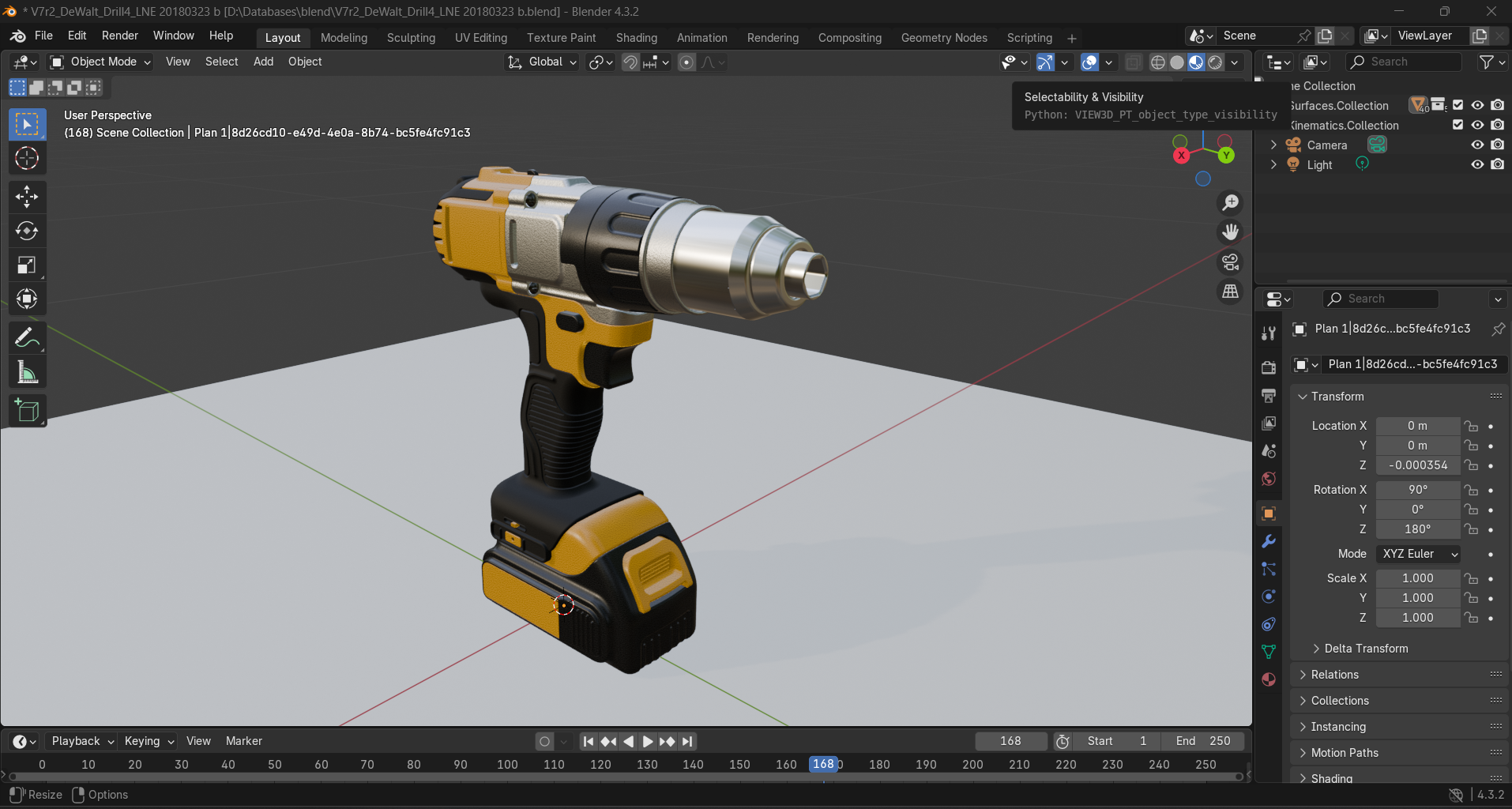 | → 3D DBB |
How to save the new modifications to the 3D DBB?
Context: The data is already saved to the 3D DBB, and you want to save new modifications.
[Optional] Set a user name and tag keyword.
Click on the Save
button.
| → 3D DBB |
How to load the Blender database from the 3D DBB?
Warning
Loading a 3D DBB will clear all data from the current Blender session. It is safer to start from an empty Blender session.
Context: The data is already saved to the 3D DBB, and you want to load it into your current Blender session.
Open Blender without loading a specific .blend file.
Click on the Save
 button.
Your Blender is ready to be used!
| ← 3D DBB |
How to synchronize the local Blender data with the Blender data in the 3D DBB?
Prerequisites: Blender database is loaded from the 3D DBB.
Context: The data is already saved to the 3D DBB, and you want to save your modifications and merge them with all the recent modifications done by other users.
Choosing to click on the Synchronize  button means that your work will be saved, then all the modifications on the database will be merged, and the result of it will be displayed in your current Blender session.
How to close a 3D DBB file?
Prerequisites: Blender database is loaded from the 3D DBB.
Context: This functionality may be required if you want to delete the 3D DBB file, but the database is open in your current Blender session: if you click Close, you can close the database without closing Blender.
Click on the Close  button. The 3D DBB file has to be opened previously; otherwise, the button is disabled.